Homepage
A personal homepage generated based on your usage data on QEG.NET. It not only includes a range of fun display features to show your personal style, but also provides practical tools to enhance the postcard exchange experience for you and your friends.
Tip
The homepage product is under rapid development. The help documentation may be outdated; please refer to the actual functions of the product.
Received Card Gallery (Default Home)
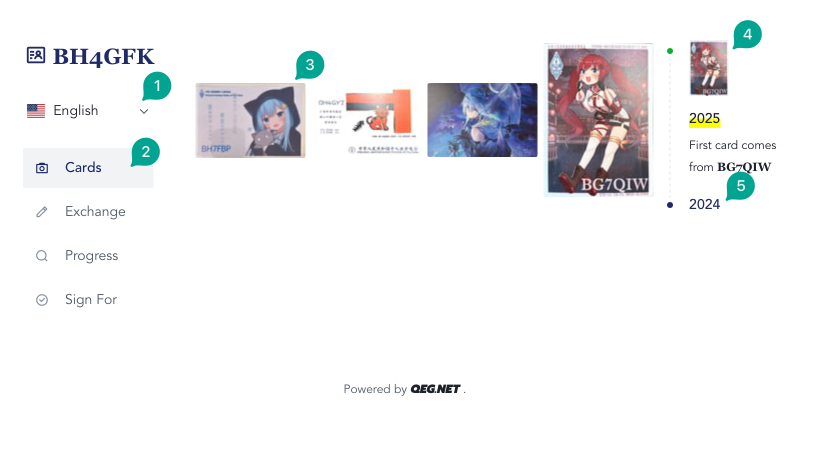
1. Language Selector
The homepage supports multilingual display, with Simplified Chinese as the default. Other supported languages are available as options and can be switched.
2. Function Navigation
You can click through the navigation to access all functional modules provided on the homepage.
3. Received Card Gallery (Default View)
The homepage displays the received card gallery by default.
Cards are sorted in reverse chronological order by receipt date, with the most recent ones shown first. If there are no cards for the current year, the most recent year with data will be displayed.
Each card image can be clicked to view in full size, with auxiliary functions such as zoom in, zoom out, rotate, and download.
4, 5. Timeline of Received Card Gallery (Default View)
The timeline shows years that contain card data. You can click a year to switch to the card collection display for that year.
The timeline displays a thumbnail of the first card received that year, which can be clicked for full-size viewing and related operations.
Exchange Request
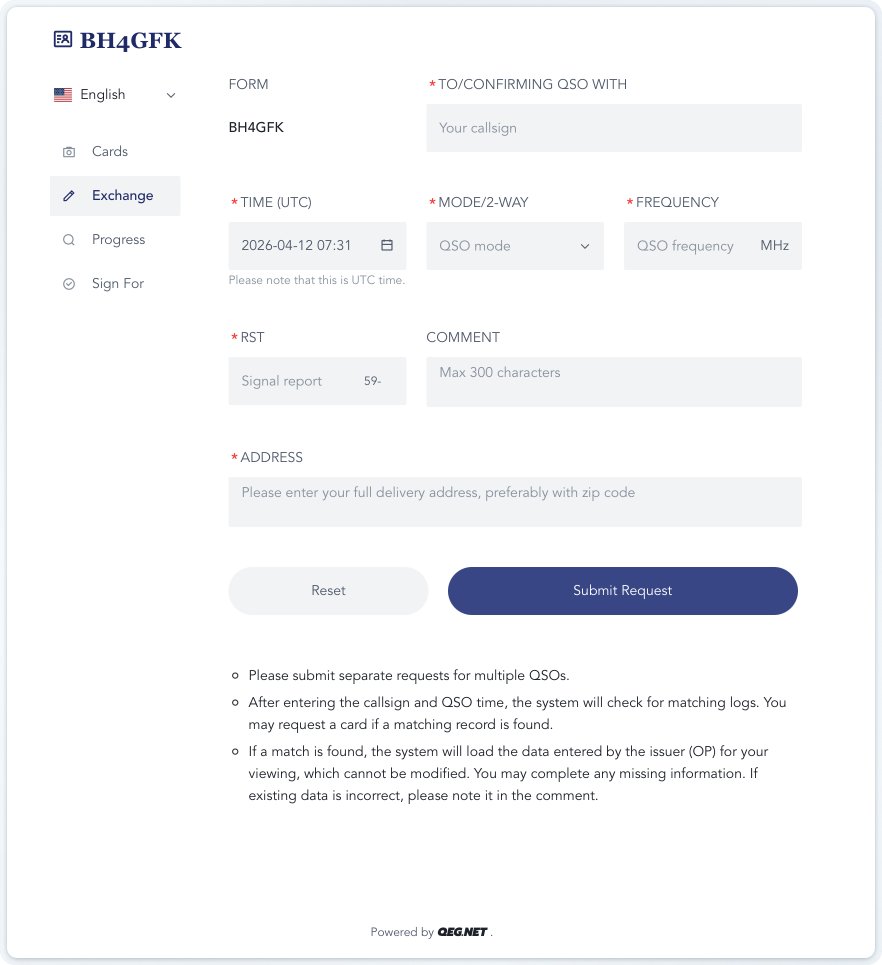
The online exchange request module currently supports QSL cards for the HAM community. Regular postcards and Eyeball Cards are not yet supported.
Application Precheck
To prevent spam, the system uses a verification algorithm for exchange requests.
After the applicant fills in TO / CONFIRMING QSO WITH and TIME (UTC), the system checks the issuer’s logged records for matching entries — specifically, whether there are logs with matching callsigns on the same calendar day. The exact times do not need to match, but the dates must be the same.
If a match is found, the system will load the existing data entered by the issuer, which cannot be modified by the applicant. Any fields not filled by the issuer must be completed by the applicant before submission.
If no match is found, the system will show an alert and the request cannot be submitted.
In short, the issuer must first log QSO records eligible for exchange requests into the system. This process is detailed in the Log module documentation.
Approve Request
Requests that pass precheck are submitted to the Homepage - Log module.
In this module, you can confirm the request and update information to correct inaccurate details before approval. This process is detailed in the Log module documentation.
Process Request
In the Mail - Mailing function, you can link log records in Pending Print status — which includes exchange requests approved by the issuer.
By linking these logs and using the mailing function, you can associate outgoing mail with the log entries. Once the mail is dispatched, the linked log entries will be marked as Printed, completing the exchange request.
Mailing Progress
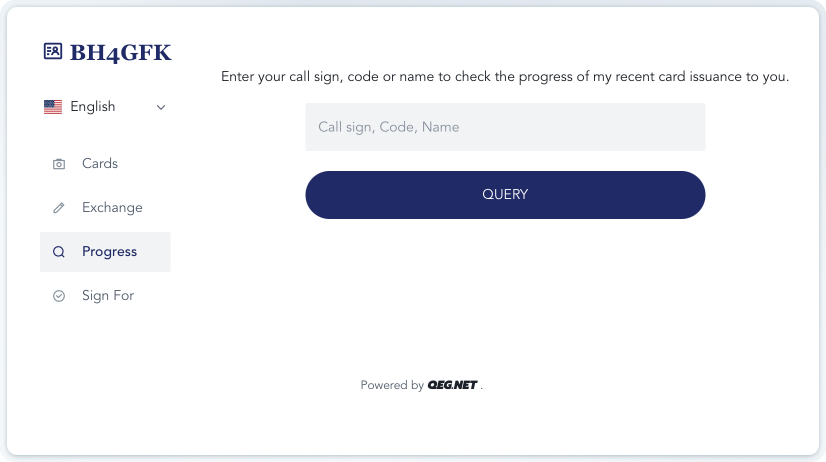
Applicants can check the processing status of exchange mail and the delivery method here.
Receipt Confirmation
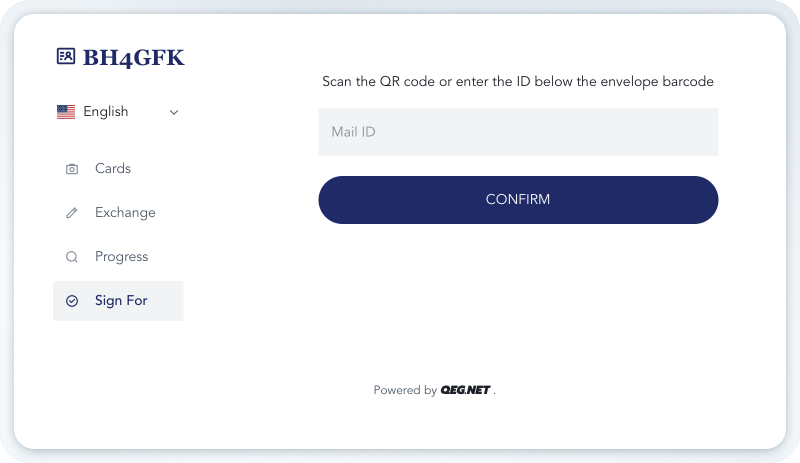
Applicants can confirm receipt of mail here.
If the mailed item includes an acknowledgment sticker, the recipient can scan the QR code to quickly confirm receipt without manually entering the mail ID.
If no acknowledgment sticker is available, the recipient can enter the ID under the mail barcode to complete confirmation.