QSO Log
Designed specifically for HAM QSL card management, conforming to international contest format standards.
You can use this product to record your QSO log as an amateur radio operator, and use it together with the QSO Record Sticker service in the Mailing service.
Add Log Entry
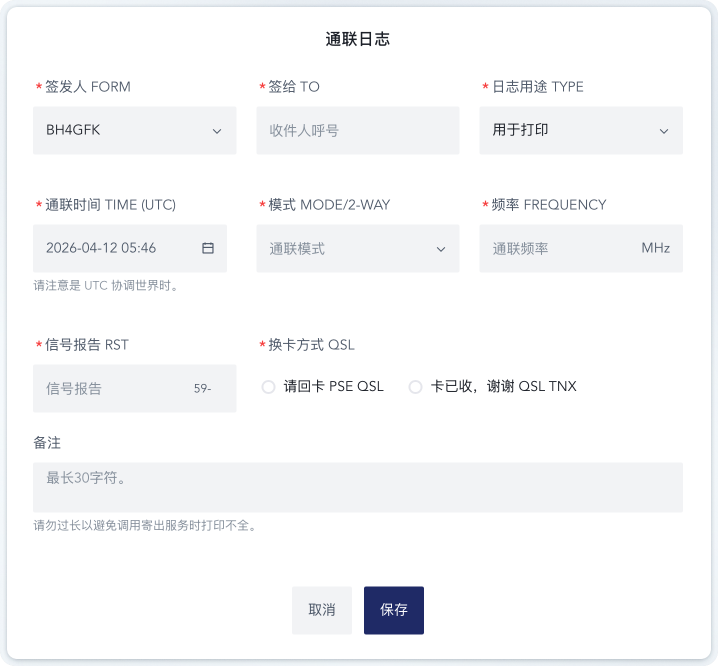
Enter the log interface and click the Add button to create a new QSO log entry.
A log entry contains the following information:
| Field | Example | Description |
|---|---|---|
| Issuing Station FORM | BH4GDU | Callsign of the station sending the card. Must be selected from your receiving codes. |
| Contacted Station TO/CONFIRMING QSO WITH | BH4GFK | Callsign of the station worked. |
| Log Purpose TYPE | For Printing | Select For Printing to set the log to Pending Print status, or For Exchange Request to set it to Pending Completion status. |
| QSO Time TIME (UTC) | 2023-05-29 12:56 | Time of the QSO, precise to the minute, in UTC. Be sure to convert to UTC when entering. |
| Mode MODE/2-WAY | FM | QSO mode. Contact support if a needed mode is missing. |
| Frequency FREQUENCY | 438.500 | QSO frequency. Pay attention to the unit. |
| Signal Report RST | 59- | Signal report. Supports 2-digit and 3-digit formats in international standard notation. A hyphen is recommended for 2-digit reports. Common presets are available on the right. |
| QSL Action QSL | PSE QSL | QSL indication per international standards. Options: PSE QSL (Please QSL), QSL TNX (QSL Received, Thanks). |
| Remarks | 73! | Short notes. Keep text brief to avoid truncation or misalignment when printed. |
When Log Purpose is set to For Exchange Request, only Issuing Station FORM, Contacted Station TO/CONFIRMING QSO WITH, QSO Time TIME (UTC) are required; other fields may be left blank.
For exchange request logs, pre-filled fields are visible but not editable by the applicant. Blank fields must be completed by the applicant before submission to the issuer for confirmation.
Edit Log Entry
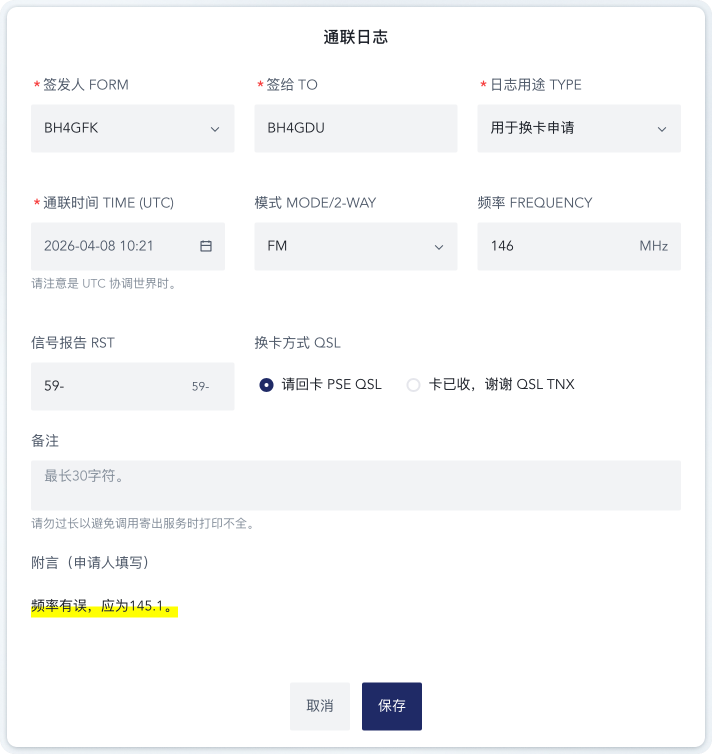
Click the Edit button on the right of the log list to open the edit interface, which is similar to the add interface, allowing you to modify the information.
For logs marked For Exchange Request, the applicant may enter a Remark, which will be shown in Remark (Entered by Applicant) for the issuer to review.
Logs that have already been printed cannot be edited.
Confirm Log Entry
If a log is in Pending Confirmation status, click the Confirm button on the right of the log list to approve it.
Pending Confirmation logs come from those marked For Exchange Request. Such logs start as Pending Completion, allowing applicants to request cards via the issuer’s homepage. After submission, the log status changes from Pending Completion to Pending Confirmation.
Confirming the log is equivalent to approving the exchange request, and the status updates to Pending Print, so the issuer can link it to outgoing mail.
Void Log Entry
Click the Void button on the right of the log list to invalidate the corresponding log.
Logs that have already been printed cannot be voided.